TonePaths Beta Guide
Everything you need to know to get started — from first launch to drawing paths, playing them back, and sending MIDI.
What Is TonePaths?
TonePaths transforms your iPhone's motion into synchronized sound and visuals. Tilt, rotate, and move your phone — hear tones shift, watch glowing paths appear in the air around you. You can record gestures as paths that float in 3D space, then play them back to hear the gesture again.
Getting Started
Requirements
- iPhone XS or later
- iOS 18 or later
- Camera and motion sensor access
First Launch
When you open TonePaths, the app will ask for several permissions. All are required:
- Camera — Used for spatial tracking (ARKit), not recording video. The camera helps the app understand where your phone is in the room.
- Motion sensors — The core of the instrument. TonePaths reads your phone's rotation and movement to generate music and visuals.
Grant all permissions when prompted.
Choosing a Role
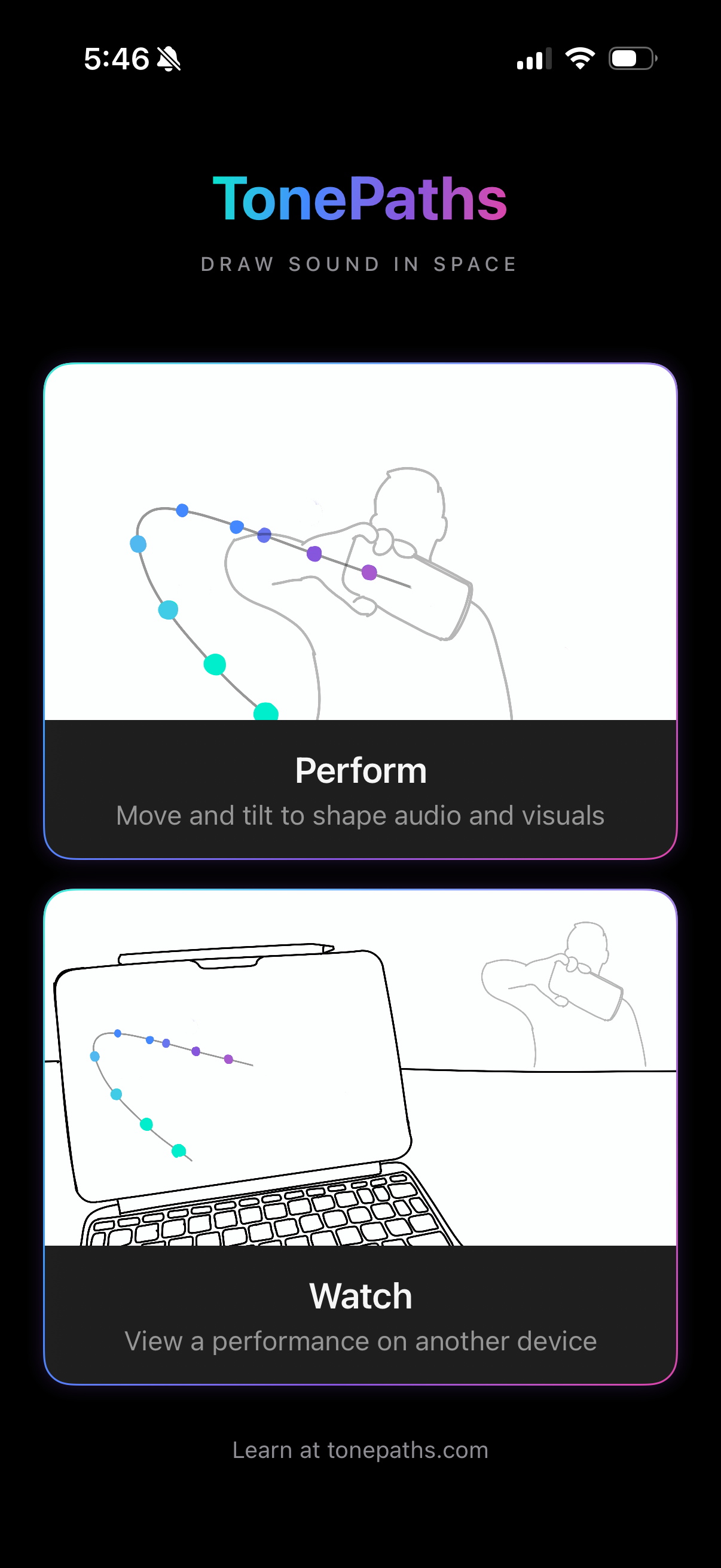
You'll see a role selection screen with two cards:
- Perform — Choose this. This is the primary experience — move and tilt to shape audio and visuals.
- Watch — Turns your device into a viewer for someone else's performance. Only use this if another person is performing and invites you to watch.
Your choice is saved between launches. To change it later, tap the < button to go back to the role selection screen.
Placing the Stage
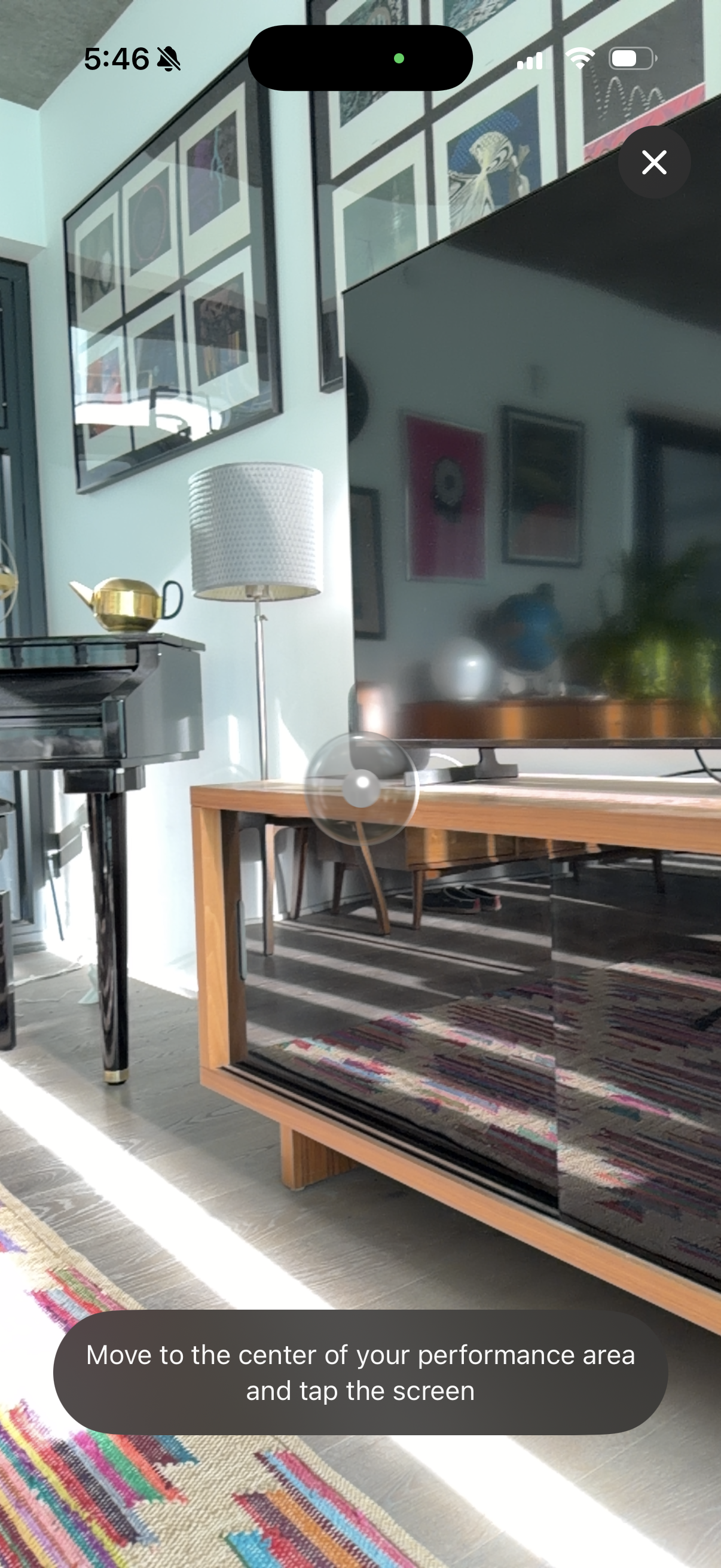
Before you can make sound, TonePaths needs to establish a coordinate system for your performance space. On first launch, a recenter overlay appears automatically:
- Move to the center of the area you want to perform in
- Tap the screen to place the stage at that location
You can recenter at any time by tapping the scope icon (⊕) in the top-right toolbar.
If tracking gets confused, recenter by tapping the scope icon again. Good lighting and a room with some visual features (not blank white walls) helps ARKit track accurately.
Making Sound
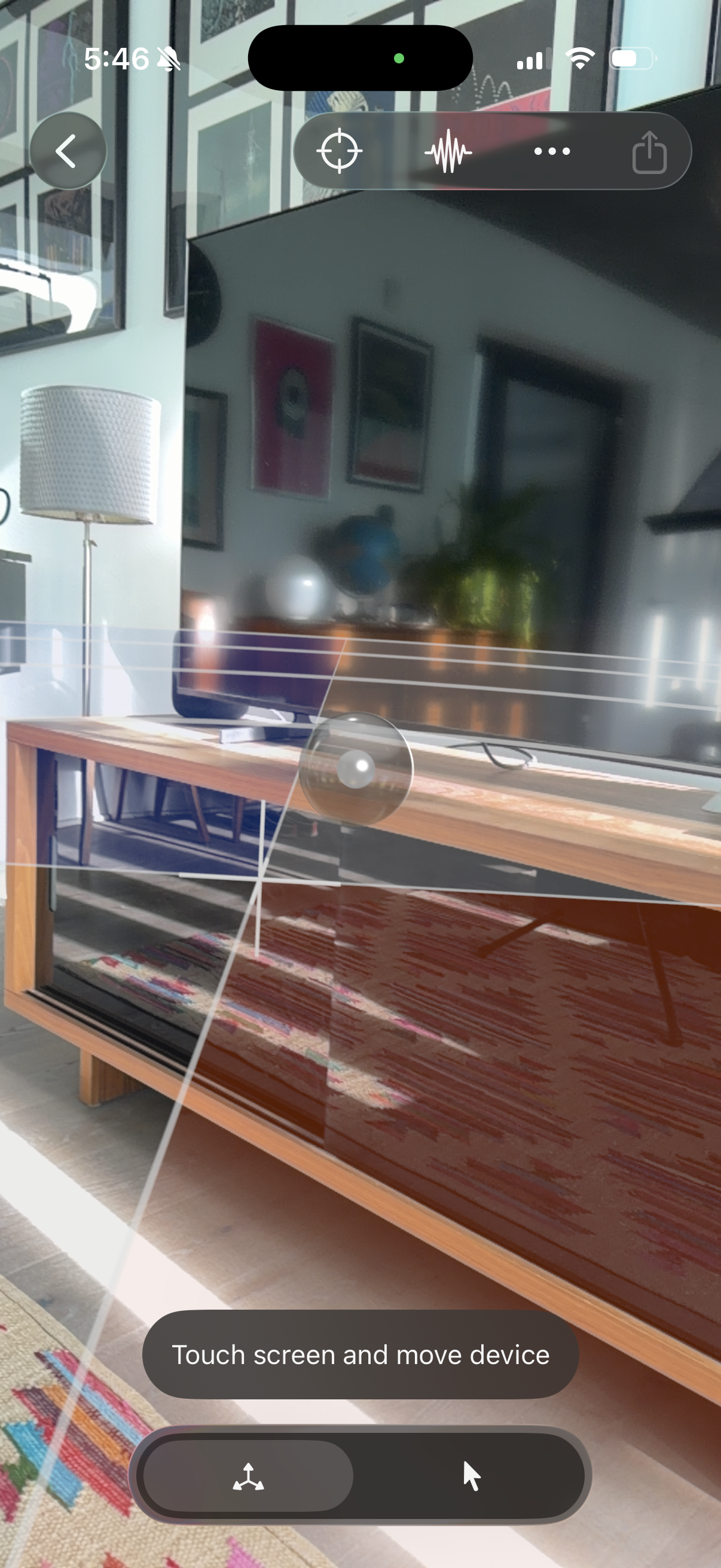
Once the stage is placed, you're in Draw mode (the default). Move your phone and you'll see a cursor projected in front of the camera.
How Motion Maps to Sound and Visuals
TonePaths reads tilt, rotation, position, and movement speed from your iPhone's sensors, and maps them to audio and visual parameters — things like pitch, amplitude, and color.
The built-in sound engine responds to these mappings in real time. Over Bluetooth MIDI, you can route any motion stream to any parameter in external software like Ableton Live, giving you full control over what each gesture does.
The Mode Toggle
A segmented control in the bottom toolbar switches between two modes:
| Mode | What Touch Does |
|---|---|
| Draw | Touch the screen and move your device to record a path |
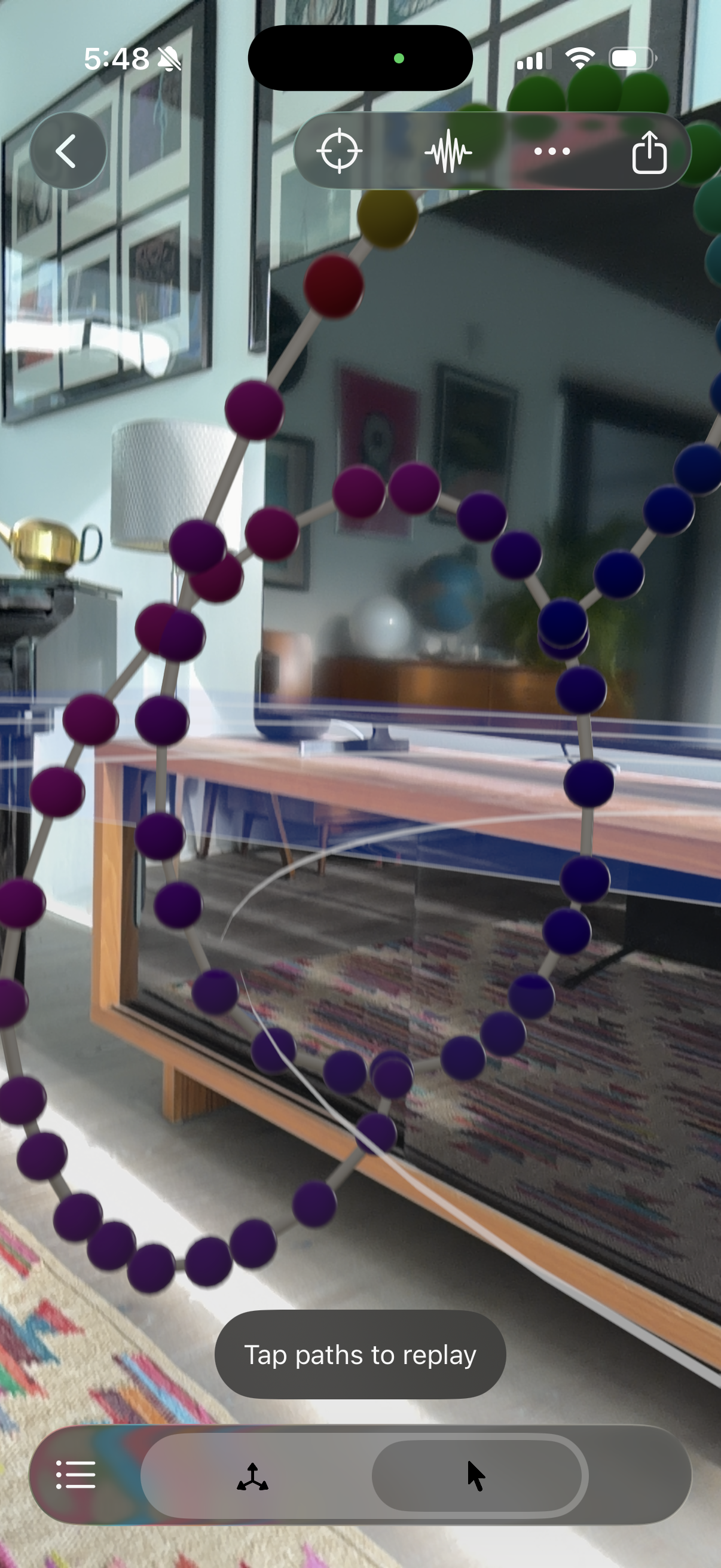
| Replay | Tap existing paths to play/stop them |
Replay mode becomes available once you've recorded at least one path. A stop button appears in the bottom toolbar during active playback.
Drawing a Path
In Draw mode, touch anywhere on the screen and hold, then move your device through space. Your motion is captured as a glowing 3D path — the drawing position is projected in front of your camera, so you're drawing by moving the phone, not by touching different parts of the screen. Lift your finger to finalize the path.
Sound activates while your finger is on the screen and stops when you release.
Playing Back Paths
Switch to Replay mode using the segmented control in the bottom toolbar. Then tap on any path in the 3D scene to start playing it back. Tap it again to stop. A progress bar appears at the top of the screen during playback.
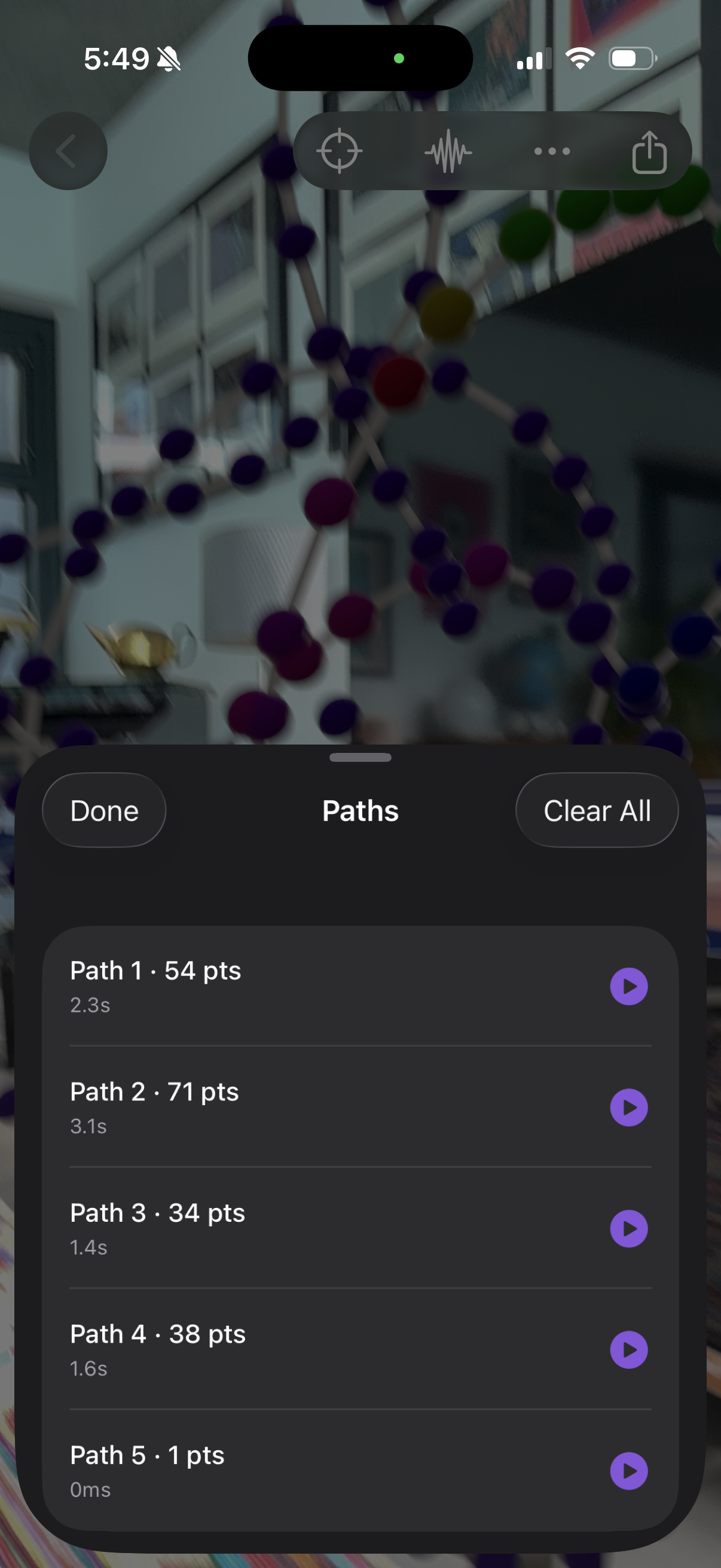
You can also access your recordings by tapping the list icon (bottom-left, visible in Replay mode) — this opens a sheet showing all your recorded paths with their point counts and durations. Tap any recording to play it. Swipe left to delete individual paths, or use Clear All to start fresh.
The Toolbar
The top-right toolbar contains four buttons:
- Recenter (scope icon) — Recenter the stage at your current position
- Audio & MIDI (waveform icon) — Open audio and MIDI controls
- Settings (… icon) — Performance profiles, stage, viewer connection
- Export (share icon) — Export paths as a .usdz 3D file (enabled once you have at least one path)
What You'll See and Hear
Audio
The built-in sound engine has two layers that activate when you're drawing or playing back a path:
- Drone — A continuous harmonic foundation that responds to your movement.
- Melodic Voice — Pitched melodic content that activates when your movement intensity crosses a threshold.
Both layers respond to the same parameter space, so what you see and what you hear are driven by the same gesture. Sound is only active while your finger is on the screen (drawing) or while a path is playing back.
You can disable the built-in sound entirely from the Audio & MIDI screen — useful when using TonePaths purely as a MIDI controller.
Visuals
The performer sees an AR camera view overlaid with glowing 3D paths — threads in space showing where you've drawn. A cursor dot tracks the drawing position projected in front of the camera.
Performance Profiles
TonePaths includes three performance profiles that configure the camera, audio, and MIDI together. Access them from Settings (… icon):
| Profile | Camera | Sound | MIDI | Best For |
|---|---|---|---|---|
| Immersive | On | On | Off | Standalone performance — sound and visuals from the phone |
| Focused | Off | On | Off | Dark background, sound from the phone, less visual distraction |
| Controller | Off | Off | On | Using TonePaths as a MIDI controller for external software |
Individual toggles (camera, sound, MIDI) can still be adjusted independently after selecting a profile.
Audio & MIDI
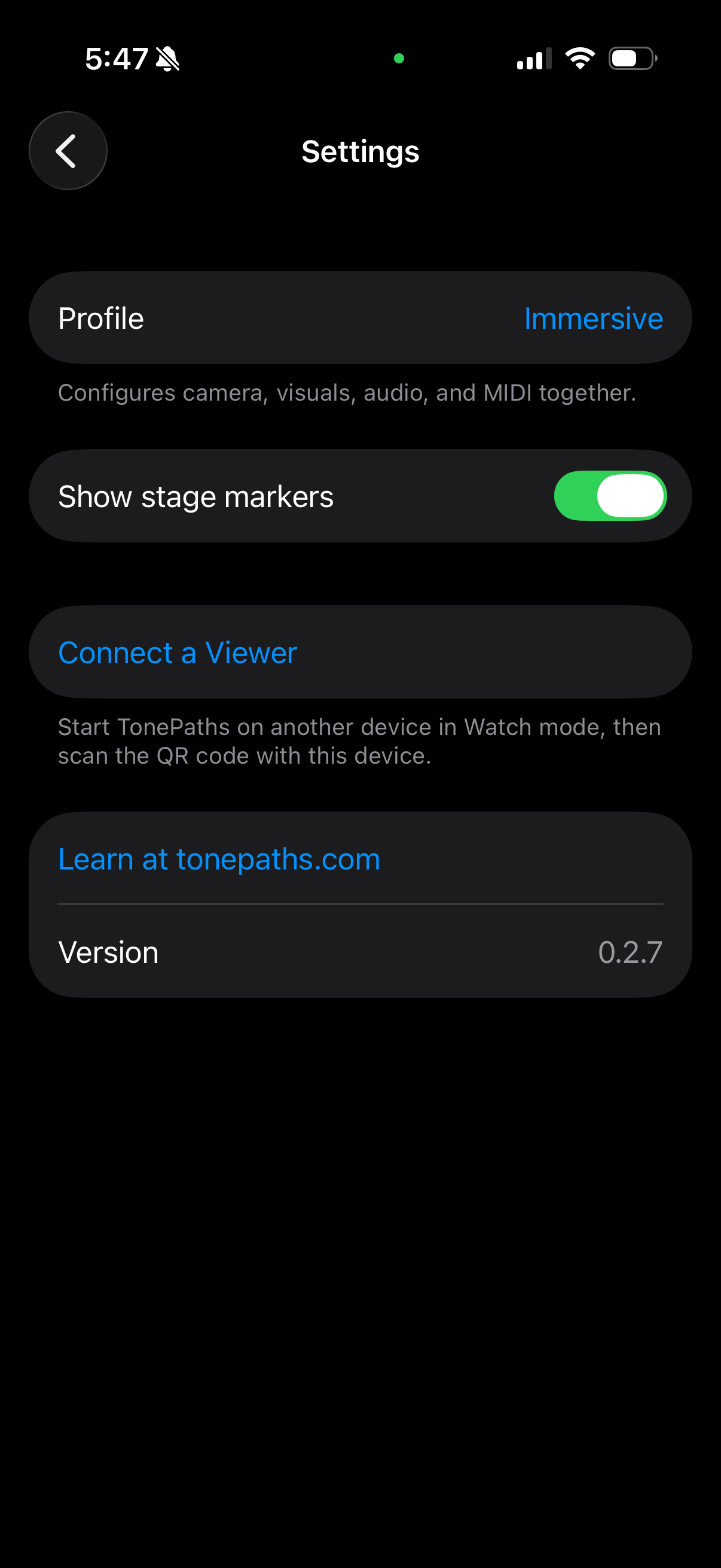
Tap the waveform icon in the top-right toolbar to open the Audio & MIDI screen. This controls both the built-in sound engine and MIDI output:
- Built-in Sound — Toggle on-device audio. Turn off when using TonePaths as a MIDI controller only.
- Stream MIDI — Enable MIDI CC output over Bluetooth LE.
- Bluetooth — Set up and refresh BLE-MIDI connections.
- Channels — Per-channel enable/solo toggles with live value meters. Bulk controls to turn all channels on or off.
See the MIDI setup guide for step-by-step connection instructions.
MIDI CC Reference
TonePaths outputs 13 channels of motion data as MIDI CC over Bluetooth LE. All CCs arrive on a single MIDI channel.
| CC | Group | Axis | Source | Character |
|---|---|---|---|---|
CC1 | Rotation | X | Phone pitch (forward/back tilt) | Smooth, full range |
CC2 | Rotation | Y | Phone roll (left/right tilt) | Smooth, full range |
CC3 | Rotation | Z | Phone yaw (left/right turn) | Smooth, wraps |
CC4 | Rotation Rate | X | Angular velocity X | Spiky, reactive |
CC5 | Rotation Rate | Y | Angular velocity Y | Spiky, reactive |
CC6 | Rotation Rate | Z | Angular velocity Z | Spiky, reactive |
CC7 | Position | X | ARKit position X | Slow, room-scale |
CC8 | Position | Y | ARKit position Y | Slow, room-scale |
CC9 | Position | Z | ARKit position Z | Slow, room-scale |
CC10 | Velocity | X | Movement speed X | Burst on movement |
CC11 | Velocity | Y | Movement speed Y | Burst on movement |
CC12 | Velocity | Z | Movement speed Z | Burst on movement |
CC13 | Interaction | — | Touching screen (gesture gate) | Binary on/off |
Tip: CC1–CC3 (rotation) are the most musically useful for sustained expression. CC4–CC6 react to gesture speed — great for intensity and effects. CC7–CC12 require ARKit tracking and reflect your physical position and velocity in the room. CC13 fires when you touch or release the screen.
Viewer Mode (Multiple Devices)
Any device that can run the TonePaths iOS app — iPhone, iPad, or a Mac with Apple Silicon — can act as a viewer, receiving synchronized audio and visuals from the performer. If the viewer device supports it, you can mirror or extend to an external display like a projector, TV, or monitor for audience-scale visuals.
- Viewer's device: Open TonePaths, choose Watch. A QR code appears on screen along with a "Waiting for performer…" status.
- Performer's device: Go to Settings (… icon) and tap Connect a Viewer, then scan the QR code shown on the viewer's screen.
- Once connected, both devices show a green "Connected to [device name]" indicator. The viewer transitions to the spatial scene and receives all paths and real-time motion data.
The viewer runs its own audio and visual engines independently — if the connection drops, the viewer keeps any paths it already received and automatically tries to reconnect. The viewer also has full MIDI output and scene export capability.
Live Drawing
Viewers see paths appear point by point in real time as the performer draws, not just after the path is finalized. This gives the audience a sense of watching the gesture unfold live.
Orbit Camera
By default, the viewer shows a non-AR 3D scene. Drag on the screen to orbit the camera around the performance. This is especially useful on stationary devices — an iPad on a desk or a Mac laptop — where you want to watch from different angles without physically moving.
AR Mode (Viewer)
On devices that support ARKit, the viewer can toggle AR Camera on from Settings. This shows paths overlaid on the camera feed in physical space. When AR mode is active, the viewer will see an alignment prompt — point the camera at the shared marker image to align the viewer's coordinate system with the performer's.
Scene Export
Both the performer and the viewer can export the 3D scene as a .usdz file. Tap the share icon in the top-right toolbar — it's enabled once at least one path exists. The share sheet lets you AirDrop the file, save to Files, or open it directly in 3D tools.
Tips for the Best Experience
- For external audio, use a wired connection to minimize latency. Bluetooth speakers and headphones add delay that can make the motion-to-sound connection feel sluggish. A viewer device connected to a wired speaker system is a great option for performances. Macs with Apple Silicon (M1 or later) can run iPhone apps directly — so you can use a Mac as a TonePaths viewer with wired audio output.
- Give yourself room to move. A few square meters of open space makes the experience richer since your position maps to audio and visual parameters.
- Take it outside. Open spaces give you room to draw large-scale 3D sculptures in the air. Step back and screenshot your creation floating in the real world — ARKit tracks well outdoors in daylight.
- Start in Draw mode. Touch the screen and move your phone slowly at first — tilt forward, back, side to side. Listen to how the sound tracks your movement.
- Draw, then replay. Draw a path, switch to Replay, and tap it to hear your gesture played back.
- Good lighting helps. ARKit tracking works best in well-lit rooms with visual texture on the surfaces.
- Try the Controller profile. If you have Ableton Live or another MIDI-capable app, switch to the Controller profile and map your phone's motion to any parameter.
Known Limitations
- Paths don't persist between sessions. When you close the app, recorded paths are gone.
- Single path playback. Only one path can play at a time — starting a new one stops the current one.
- MultipeerConnectivity can be finicky. If Viewer Mode doesn't connect, close and reopen the app on both devices.
- Battery usage. ARKit + motion sensors + audio synthesis is demanding.
- Portrait only. The app is locked to portrait orientation.
Providing Feedback
Your feedback shapes the instrument. The most useful things to report:
- Crashes — TestFlight captures crash logs automatically, but a note about what you were doing is invaluable.
- Feel — Does the motion-to-sound connection feel responsive? Musical? This is the most important feedback.
- Confusion — Any moment where you weren't sure what to do.
- Latency — Any noticeable delay between movement and response.
- Ideas — "I wish I could…" is always welcome.
Send feedback through TestFlight's screenshot feature (shake your device) or email directly.